
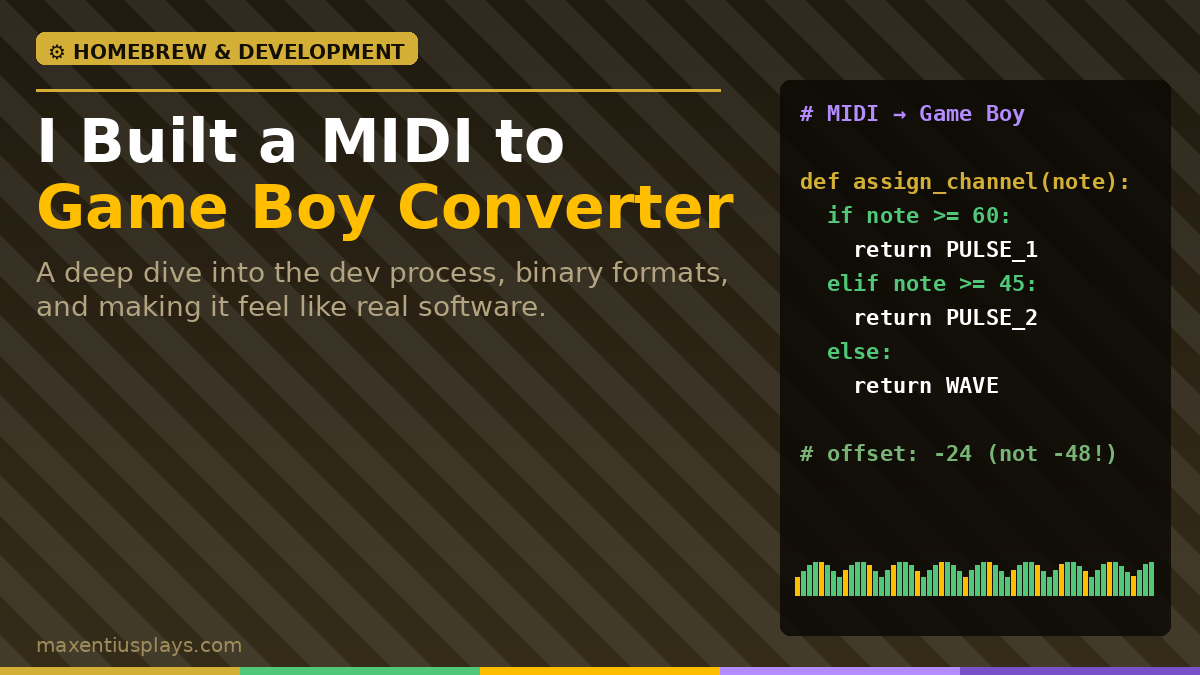
I’ve been sitting on a folder of MIDI files for years. Arrangements, transcriptions, little melodic sketches — the kind of stuff that never goes anywhere because converting it into something usable is always the annoying part. My current obsession is chiptune on the Game Boy, and the tracker I use — hUGETracker — doesn’t import MIDI. So I finally decided to do something about it and build my own converter.
📱 Watch the Short
Prefer a quick summary? Watch the 30-second version on YouTube.
⬇ Free Download
The converter is free — outputs hUGETracker .uge format, ready to import and export for GB/GBC games.
What started as a quick weekend Python script turned into a proper desktop application. This is the story of how that happened, the weird problems I ran into, and some of the design decisions that went into making it feel like real software rather than something you run from a terminal.
The Problem With MIDI and Chiptune
MIDI is a rich format. You can have 16 channels, 127 notes of polyphony, dynamics, pitch bend, sustain — the full orchestra in a text file. The Game Boy has four channels total. Two square wave pulse channels, one custom wave channel, and one noise channel. That’s it.
So any MIDI-to-GB conversion has to make choices. Hard choices. Which notes go where? What do you throw out? How do you map a piano or a string section across four primitive voices without it sounding like a mess?
I spent a while thinking through the design before I wrote a single line of code. The approach I landed on was pitch-based voice splitting — highest pitches go to Pulse 1, mid-range to Pulse 2, low-range to the Wave channel. The Noise channel is reserved for percussion (not fully implemented yet, but scaffolded for v2). If multiple notes land on the same channel at the same time, only the highest-pitched wins. That’s a consequence of hardware — the Game Boy can’t do polyphony per channel.
It’s not a perfect approach. Real arrangements need human taste to route things well. But as an automatic first pass it gets you 80% of the way there, and then you can tweak in hUGETracker afterward.
The Binary Format Rabbit Hole
Before any of this could work, I had to understand hUGETracker’s .uge file format. There’s no official spec document — just the tracker itself and some community reverse-engineering. I spent an afternoon opening known-good .uge files in a hex editor and mapping out the byte layout.
The format is clearly Pascal in origin. Strings are stored as a 1-byte length prefix followed by a fixed 255-byte buffer, zero-padded — classic Pascal short strings. The instrument blocks are each exactly 1385 bytes, and that number comes from: 4 (type) + 256 (name) + 37 (params) + 64 rows × 17 bytes (subpattern). The subpattern is a mini pattern inside every instrument, which is a fun feature I haven’t used yet.
The order table — which tells the tracker which patterns to play in which order — had one of those subtle off-by-one things that took me longer than I’d like to admit to figure out. The count stored in the file is N+1 rather than N, and there’s a trailing zero entry after the pattern IDs. The Pascal reader reads exactly N integers, so the trailing zero lands in the last slot and gets skipped during playback. Once I understood the intent it made sense, but reading it cold from hex output was confusing.
The Pitch Mapping Bug That Silenced Everything
Early on, the Wave channel produced no audio at all. The patterns were being written correctly. The instrument was configured properly. hUGETracker showed notes in the channel. But there was complete silence when it played.
This one took a while. The Game Boy wave channel has a hardware volume control (a 2-bit output level register) separate from the software volume in the instrument envelope. I spent time chasing that as the culprit — checking the byte offsets, confirming the value was being written in the right place. Everything looked right.
The actual problem was much simpler and more embarrassing: the note numbers were wrong. I was converting MIDI notes using an offset of -48, which I’d derived from a misread of hUGETracker’s octave labeling. hUGETracker calls its lowest note “C3,” but in standard pitch terms that’s C1 — about 32.7 Hz. What I thought was middle C in hUGE was actually 2 octaves below middle C. Every Wave channel note I was writing was in the 40–55 Hz range — pure sub-bass, completely inaudible on any speaker.
The fix was changing the base offset to -24. hUGE note 36 = 262 Hz = MIDI note 60 = middle C. From that anchor, everything else follows. After the fix, the wave channel came alive immediately.
There’s a lesson in there about trusting your ears over your assumptions. I was so convinced the binary format was the issue that I kept looking there instead of at the note values themselves.
Octave Tuning by Ear
Once the pitch mapping was correct, I ran Für Elise through the converter as a test case — it’s a good choice because the melody is instantly recognizable and it has a clear bass line that should sit in the Wave channel. The result was technically correct but musically off. The pulse channels were playing an octave too high, making the melody sound bright and tinny in an unpleasant way. The Wave channel was still a little muddy even at the right pitch center.
The solution was per-channel octave shift. Pulse 1 and Pulse 2 default to -1 octave shift (one octave below the mathematically correct mapping), which puts the melody in a warmer, more mid-range frequency band. The Wave channel defaults to +1, pushing the bass up into a register where it actually cuts through on Game Boy hardware.
These are now user-adjustable in the UI. I wanted to expose them because the “right” setting is highly dependent on the source material — a bass-heavy track might want Wave at 0 or even -1, while a solo melody might work fine at the default.
Building the GUI
I built the app in Tkinter, Python’s built-in GUI toolkit. I know Tkinter has a reputation for looking dated, and that reputation is mostly deserved — the default widget appearance is very 1998. But it ships with Python, requires no extra dependencies for the GUI itself, and with the clam theme and a lot of manual style configuration, you can get something that looks intentional rather than accidental.
The design goals were:
- Everything on one screen — no tabs, no modals for settings
- Grouped logically — source file, then song metadata, then timing, then channel settings
- Visual channel identity — each Game Boy channel gets a color (green for Pulse 1, yellow for Pulse 2, orange for Wave, blue for Noise) carried through from the Maxentius Plays logo
The color coding was actually important for usability. The channel settings panel has four rows of controls and without some visual anchor it’s easy to lose track of which row you’re adjusting. The colored dot at the left of each row gives you an instant reference point.
One layout decision I went back and forth on was whether Timing and Channel Settings should be side-by-side or stacked vertically. Side-by-side keeps the window more compact and lets both panels be visible without scrolling. The tradeoff is that the channel panel is narrower, which required some careful column sizing. In the end the compact layout won — this is a utility app, not a DAW, and keeping the window small makes it easier to use alongside another application.
A Weird Combobox Bug
I want to document this because it took me longer to track down than almost anything else and I’ve seen it mentioned exactly nowhere online.
Tkinter readonly comboboxes exhibit a focus behavior where the first click on the widget gives it focus but doesn’t open the dropdown. A second click then opens it. This is mildly annoying but acceptable — except that after selecting a value, the combobox stops responding to clicks entirely unless you first interact with a different focusable widget (like a Spinbox).
The fix is to explicitly call focus_set() on the combobox in a <Button-1> binding. This forces focus before the default click behavior runs, which ensures the dropdown opens on the first click every time. One line of code, applied to every combobox in the app, completely resolves the issue.
cb.bind("<Button-1>", lambda e: cb.focus_set())I’m putting this in the blog because I genuinely could not find a clear answer for this when I was debugging it, and I want it to exist somewhere searchable.
Making It Feel Like Real Software
Shipping a Python script is fine for a developer. Shipping a .exe is necessary for anyone else. PyInstaller handles the packaging — it bundles the Python interpreter, all dependencies, and the app code into a single executable. The output is about 14 MB, which is reasonable for something that includes its own Python runtime.
For the professional touches:
- Custom icon in the taskbar and window title bar, matching the Maxentius Plays brand
- Windows version metadata embedded in the executable — the kind of thing that shows up in File Properties → Details, with company name, product name, and version number
- About dialog accessible from the header, with version info and a link back to the blog
- Clickable footer link to maxentiusplays.com
- Auto-named output files based on the input MIDI filename, dropped into an
output/folder next to the executable
The icon required more work than expected. PIL’s built-in ICO export only reliably produces a single resolution, which means Windows scales it up and it looks blurry at larger sizes. The fix was to manually assemble the ICO binary format — a header, followed by a directory of image entries, followed by PNG data for each resolution. Six sizes total (16, 32, 48, 64, 128, and 256 pixels). The result is a proper multi-resolution icon that looks sharp at any display size.
What’s Next
Version 1.0 converts MIDI to .uge and lets you tune the key parameters. There’s a lot of room to go deeper:
- Percussion support — MIDI channel 10 drum notes mapped to the Noise channel with period values that approximate drum sounds
- Velocity-to-volume — using MIDI note velocity to drive per-note volume in the tracker patterns
- Note length — tracking note-off events and writing rests appropriately, rather than letting notes ring until the next event
- Volume envelopes — exposing the hardware sweep and envelope parameters that are already in the instrument format
- MIDI channel routing — letting you manually assign MIDI channels to GB channels instead of relying on pitch splitting
For now, version 1.0 does exactly what I needed it to do: take a MIDI file, make reasonable automatic decisions, and hand me something I can load in hUGETracker and immediately start playing with. The first time I heard Für Elise come out of the Game Boy emulator with all four channels actually working, it was a genuinely satisfying moment.
The converter is free. Download the .uge converter here.
Leave a Reply