
This post contains affiliate links. If you purchase through these links, I may earn a small commission at no extra cost to you. I only recommend products I’ve personally researched and believe are worth your money.
📱 Watch the Short
Prefer a quick summary? Watch the 30-second version on YouTube.
The original Game Boy Advance screen is, to put it bluntly, a travesty. Nintendo shipped the AGB-001 with an unlit, washed-out TN panel in 2001, then somehow expected us to hold the thing at an unnatural angle under a lamp just to see what Pokémon we were encountering. Twenty-five years later, there is absolutely no reason to keep suffering through it. The GBA IPS screen mod is the single best upgrade you can do to this console — it transforms a squint-inducing relic into a stunning handheld that genuinely rivals modern displays. Brightness, color accuracy, contrast, viewing angles — all of it goes from embarrassing to excellent in about an hour of work.
I’ve installed enough of these that it’s become routine. This guide walks you through every step — from choosing the right kit to first boot — with the gotchas that every online tutorial glosses over.
What You’ll Need
Before you crack open that GBA, get everything on the table:
- GBA IPS kit — We’ll cover choices below. The IPS panel and driver board are the heart of this mod.
- Tri-wing screwdriver (Y1.5 or Y00) — Nintendo’s proprietary fastener. Don’t try to force a Phillips here; you’ll strip the screws and hate yourself.
- Small Phillips #0 screwdriver — For the motherboard screws inside.
- Spudger or plastic pry tool — For popping the shell apart and lifting the old screen without ripping flex cables.
- Flush-cut hobby knife or Dremel tool — Required if your shell needs trimming (more on this below).
- Double-sided foam tape — Some kits include adhesive; have extra on hand anyway.
- Isopropyl alcohol (90%+) and cotton swabs — To clean the lens before final assembly.
- Soldering iron (optional) — Only needed if you want the brightness control touch sensor wired up. 260–300°C, fine tip.
- A donor GBA — The console you’re modding. The AGB-001 (original clamshell) is what this guide covers. Not the SP.
Choosing Your IPS Kit
Not all GBA IPS kits are created equal. The market has evolved substantially, and the product names can be confusing even to experienced modders. Here’s where things stand in 2026:
FunnyPlaying AGB IPS MAX (Current Flagship — Recommended)
FunnyPlaying’s current GBA IPS solution is the AGB IPS MAX, the direct evolution of what the community called the “V2” kit for years. This is the kit I recommend. The replacement IPS panel is listed at $18.99 on funnyplaying.com (verified March 2026), with the full kit including driver board running approximately $35–45 from FunnyPlaying’s store or authorized resellers.
What makes this the top pick:
- True IPS panel — wide viewing angles, no TN ghosting
- Built-in OSD brightness control (adjustable via touch sensor if wired)
- Multiple brightness levels — actually usable outdoors
- Laminated glass lens option available (massively reduces glare)
- Active community support on GBATemp with real troubleshooting threads
One critical note: shell trimming is required. The IPS panel is physically larger than the original screen, and the GBA’s stock shell viewport opening is too narrow. You will need to remove approximately 2–3mm from the inner bezel lip on both sides. FunnyPlaying provides a trim template on their tutorial page. This is a rite of passage for GBA modders — not difficult, but requires patience and a steady hand with a hobby knife or Dremel.
Alternative Kits: Hispeedido and Generic IPS Options
Hispeedido offers GBA IPS kits via AliExpress and through retailers like Retro Game Repair Shop. Their Q5 IPS kit is a legitimate alternative, particularly if you want faster domestic shipping in some regions. Build quality is generally solid, though FunnyPlaying’s documentation and community support are more comprehensive. Generic “OSD IPS” kits flood AliExpress at low prices — some are fine, many have inconsistent quality control. If you go generic, read reviews carefully and buy from a seller with substantial feedback.
| Kit | Shell Trim? | Brightness Control | Notes |
|---|---|---|---|
| FunnyPlaying AGB IPS MAX | Yes (2–3mm each side) | Touch sensor + button combos | Community favorite; best documentation |
| Hispeedido GBA IPS Q5 | Yes | Touch sensor | Good alternative; available via RGRS |
| Generic AliExpress OSD IPS | Usually yes | Button combos | Variable QC; buy from high-rated sellers only |
Step-by-Step GBA IPS Screen Mod Installation
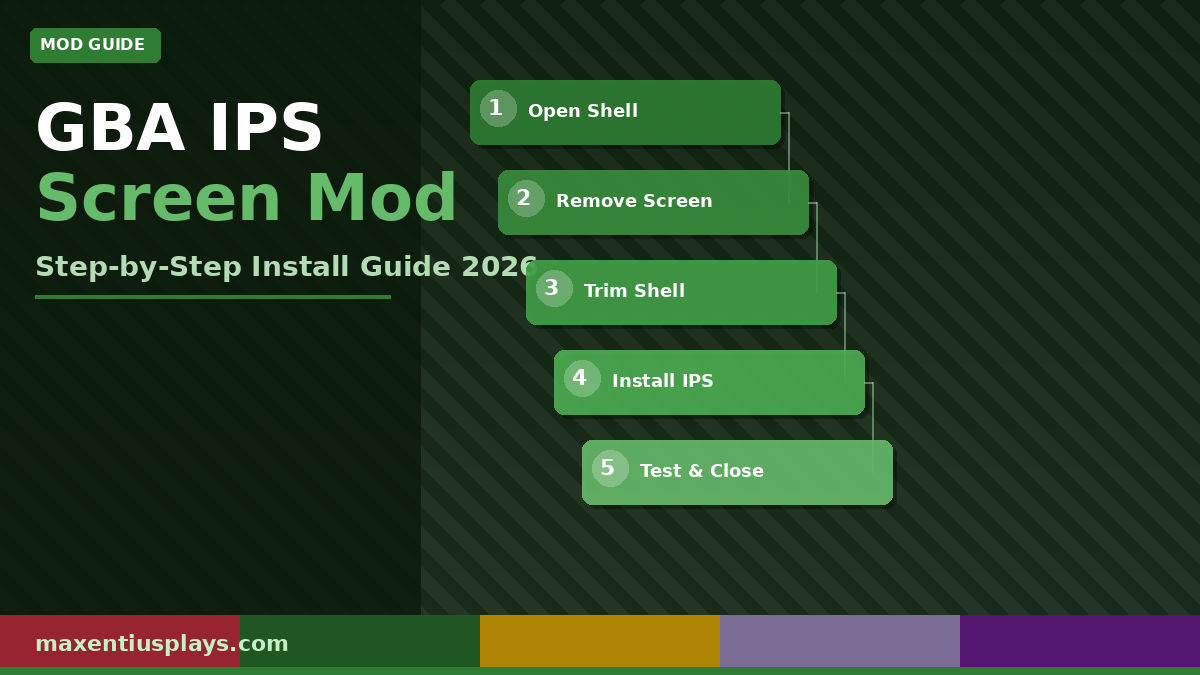
Step 1: Open the Shell
Flip your GBA face-down. You’ll see six tri-wing screws — five on the back shell and one inside the battery compartment. Remove the battery cover, take out the batteries, and unscrew all six. Note that the screws inside the battery bay are slightly longer; keep them separate. Gently run your spudger along the seam where the front and back shells meet, starting from the top. There are plastic clips along the top and both sides — work around them methodically rather than levering hard at one point. The shell halves should come apart cleanly.
Step 2: Remove the Motherboard
With the back case off, unscrew the three Phillips screws securing the motherboard. There’s a ribbon cable connecting the front panel buttons to the board — use your spudger to carefully flip up the ZIF connector locking tab (it rotates up, it does not pull off) and slide the ribbon free. Set the motherboard face-down in a safe, static-free location.
Step 3: Remove the Original Screen
The stock screen sits in a plastic frame within the front shell, behind a metal RF shield plate. Remove the shield screws and set the plate aside — you won’t need it with the IPS kit. The screen ribbon connects to the front panel’s ribbon cable assembly via another ZIF connector. Unlock and disconnect it, then lift the screen and bracket assembly free. Set the original screen aside — it’s retired, but keep it in case you ever want to restore to stock.
Step 4: Trim the Shell (Non-Negotiable)
This is the step that separates people who finish the mod from people who reassemble the GBA with the IPS panel still in the box. The IPS display is wider than the OEM screen, so the inner plastic bezel frame of the front shell needs material removed from both the left and right sides of the screen window.
How much to remove: approximately 2mm per side, working on the inner lip that the original screen rested against. Use a hobby knife and make multiple thin scoring passes rather than trying to cut through in one go. FunnyPlaying’s trim guide printout is highly recommended — print at 100% scale, overlay it on the shell interior, and mark your cut lines before cutting anything.
After trimming, test-fit the IPS panel dry. It should slot in without force, sit parallel to the shell, and not wobble. Clean all plastic debris with compressed air or a soft brush before proceeding.
Step 5: Install the IPS Panel
Peel the backing from the adhesive foam tape (or apply your own double-sided foam around the panel perimeter). Seat the IPS panel in the trimmed opening, centering it carefully — the pixel array should align with the shell window. Press the foam adhesive down to secure it. If your kit includes a plastic bracket, snap it into place to add additional mechanical security. Leave the screen protector film on the display face for now.
Step 6: Connect the Ribbon Cable to the Driver Board
Thread the IPS panel ribbon cable through the appropriate slot in the front shell. Insert it into the ZIF connector on the IPS driver board and lock the connector. This connection needs to be solid — partial insertion causes screen artifacts, lines, or a completely dead display on first boot. Then position the driver board’s output ribbon for connection to the GBA motherboard when you reinstall it.
Step 7: Optional — Wire the Brightness Touch Sensor
The FunnyPlaying kits include a small capacitive touch pad for brightness control. To enable it, you solder a single wire from the touch pad’s designated pad to a marked point on the GBA motherboard labeled “SEL” in FunnyPlaying’s documentation. This is a one-wire solder joint on a through-hole pad — if you can hold a soldering iron at all, you can do this. Adhere the touch strip to the inner face of the front shell near the screen bezel once wired.
Skip this step if you don’t want to solder — brightness is still adjustable via button combinations. You can always add the touch sensor later.
Step 8: Reassemble
Reinstall the motherboard: connect the front panel button ribbon first, lock its ZIF connector, set the PCB in place, and start the Phillips screws finger-tight. Connect the IPS driver board output ribbon to the motherboard. Before tightening any screws, route all cables carefully to confirm nothing is pinched or under tension. A pinched ribbon is the single most common cause of a failed GBA IPS mod. Align and snap the back shell halves together, then torque the tri-wing screws — firm, not gorilla-grip. The plastic standoffs in these shells are over 20 years old.
Step 9: First Boot Test
Pop in fresh batteries and a known-good cartridge. Power on. You should be greeted immediately by a brilliant, evenly backlit IPS display — colors punching off the screen, blacks that are actually black, and visibility at any angle you point the thing. Run through brightness levels with the touch sensor or button combo to confirm control is working. Check methodically for:
- Even illumination across the full panel with no dark corners or hot spots
- No dead pixels, lines, or flickering
- Correct color reproduction
- Brightness steps responding smoothly
If everything passes, peel the protective film off the IPS display glass, close the shell fully, and reinstall all screws.
Tips and Common Mistakes
1. Use the trim template — don’t eyeball it. Even modders who’ve done a dozen of these use the template. The IPS panel alignment is unforgiving; a crooked trim cut means a crooked screen window that you’ll see every single time you pick up the console. Print FunnyPlaying’s template at 100%, verify scale with a ruler, mark your cut lines in pencil before touching anything with a blade.
2. ZIF connectors are not plug connectors. Every single time the lock tab needs to come up before you insert or remove a ribbon. Forcing a ribbon into a locked ZIF connector bends the contact fingers and either kills the connection permanently or creates intermittent failure that’s nearly impossible to diagnose later. These are not snap-in connectors. Unlock, insert, lock. Every time.
3. Light bleed means the panel isn’t sealed. Glow around the edges of your installed IPS screen isn’t a defective panel — it’s a fit and seal issue. Open the shell and add foam tape to any side where light is escaping. The IPS panel emits light from all edges, and it will find any gap you leave for it.
4. Clean before you close. A single fingerprint or piece of lint between the glass lens and IPS panel is visible forever in bright light. Before snapping the back shell on for the last time, wipe the inner face of the lens and the outer face of the IPS glass with 90%+ isopropyl alcohol on a lint-free cloth or lens wipe. Close immediately after cleaning.
5. Check your GBA’s PCB revision. The revision number is printed directly on the motherboard (e.g., AGB-CPU-01, -02, -03, -10). Most GBA IPS kits support all revisions, but confirm compatibility in the kit’s documentation before purchasing — especially if you have an AGB-CPU-10 (later revision).
6. Consider a new lens while you’re in there. The stock lens on 20+ year old GBAs is often scratched beyond redemption. Replacement aftermarket lenses are a few dollars and install at the same time as the IPS kit. It’s a shame to put a brilliant IPS screen behind a scratched-up lens.
Is It Worth It?
The GBA IPS screen mod is the upgrade that makes this console worth owning again in 2026. Not as a novelty, not as a conversation piece — as an actual gaming device you’ll reach for. The AGB IPS MAX from FunnyPlaying delivers a display that would have seemed impossibly good to anyone who owned a GBA at launch. Vivid colors, perfect brightness for any lighting condition, and viewing angles wide enough that other people can actually see what you’re playing.
At $18.99 for the replacement IPS panel (verified from funnyplaying.com, March 2026) with the full kit coming in around $35–45, this is among the highest return-on-investment mods in the retro handheld space. One hour of careful work, some basic tools, and a willingness to trim plastic — and your GBA becomes something you’ll genuinely use for another twenty years.
The GBA library is enormous, brilliant, and fully playable. It deserves a screen that does it justice. Install this mod.
Panel price of $18.99 verified from funnyplaying.com/products.json on March 20, 2026. Full kit pricing includes driver board and varies; verify current prices directly at the retailer before purchasing.
Leave a Reply